Pull Request Etiquette (Tips and Guidelines)

As a developer in a professional environment, you’ve most likely have had to perform code reviews with your colleagues.

Code Reviews and Pull Requests (PR) are a fantastic learning tool and can be a point of discussion for all developers. Having other sets of eyes inspecting your code will assist with reducing errors and streamline the process of software development drastically.

The aim of this post is to give you some tips and guidelines to set the stage for good PR etiquette. Take these tips with a grain of salt; all software development teams work differently, and one set of guidelines and rules might not be a “one size fits all”. Take what you can from this and see if there are any areas you can improve on or incorporate into your PR system. Feel free to share any tips and tricks you use as well!

Just as a note, I will continue to update and add more to these tips and guidelines, since me and my team are learning more and improving our PR etiquette as we go along. I’ll be sure to share them with you here, if I find any that are interesting.

Tips and Guidelines:

  • Before sending your PR out for review, have a look over it yourself. Do a self-review of your own code. You will likely catch some minor styling/formatting issues, or possibly even major issues right away.
  • Always include a brief description of your changes, to give some background information for reviewers, so they will understand the reason for any changes.
  • If there are any related tickets or pull requests, be sure to reference them accordingly.
  • Try your best to keep PR’s small, or split them up if possible. Don’t bombard your team members with a monolithic review. Sometimes this may start with breaking down the actual ticket or task itself. It is much easier to do it before the fact, rather than after.
  • Add in your own comments to the PR to help guide the reviewers. Highlight any areas that they should focus on, and clarify any changes that may cause confusion. Sometimes, there may be follow-up tickets that will implement another feature, or missing logic in your current branch.
  • Ensure there are no merge conflicts, and your branch is up to date with the target branch.
  • Keep everyone in the loop; if you discuss things offline with another reviewer, be sure to log it as a comment in your PR. Something as simple as “As discussed with X we are not going to do Y”.
  • If your PR is just an abomination to go through, you may want to meet up with your reviewers beforehand and go over it in detail. (Especially for major architecture reworks).
  • Screenshots are especially useful if there are any UI changes.
  • Give ample time for reviewers to go over your code.

If you have anything else to add, feel free to share in the comments!
Retrieve Environment Variables into .txt File using Powershell

Here is a quick and simple one-liner to retrieve all of your environment variables into an output .txt file.

It utilizes the “gci env:” command to retrieve the environment variables on your current machine, then using piping, sends that information to “Format-List”, which will output all the properties retrieved with “gci env:” into a list of properties. Finally, the formatted list is piped into the “Out-File” command, to be saved as a .txt file at the given path.

(gci env:) | Format-List | Out-File -FilePath .\EnvironmentVariables.txt

For demonstration purposes, the -FilePath for the “Out-File” command is just the current location.

If you don’t want to output the environment variables into the text file, you can cut out the final piped command, and just use:

# with formatting:
(gci env:) | Format-List

# or without the formatting:
gci env:

This will just display the environment variable values in the terminal.

Check if two files are identical using Powershell

Checking whether two files are identical in Powershell is pretty straight forward. We will be making use of the MD5 hash of each file, and comparing their values together, to determine if the two files are the same.

We will utilize the “Get-FileHash” Powershell command, to retrieve each file’s hash, then compare them using the “-eq” command.

Here is an example below. We have two file paths stored in the variables, “$filePathOne” and “filePathTwo”, which we grab the MD5 hash from, and then comparing them together. The resulting boolean, indicating if the files are the same, is stored in the “$filesAreSame” variable.

$filePathOne = "C:\TestFileOne.png"
$filePathTwo = "C:\TestFileTwo.png"

$filesAreSame = (Get-FileHash $filePathOne -Algorithm MD5).Hash -eq (Get-FileHash $filePathTwo -Algorithm MD5).Hash

C# Get every Nth element in a List

Let’s say you have the following list of objects:

[a1, b2, c3, d4, e5, f6, g7, h8, i9]

Now, say you want to grab every 3rd element inside this list, how would you do that? That is, you want the resulting list to be:

[c3,  f6,  i9]

Here’s a generic List extension algorithm that should help you do so (using C#):

        public static List<T> GetAllNthElements<T>(this List<T> list, int n)
        {
            List<T> result = new List<T>();
            for (int i = (n - 1); i < list.Count; i += n)
            {
                result.Add(list[i]);
            }

            return result;
        }

Explanation:

Let’s use our example from above, where we want every 3rd element inside that list. We’d call the method as:

var everyThirdElementList = theList.GetAllNthElements(3);

By passing it the Nth value as 3, the value of ‘i’ inside the for loop would start off as (n – 1) = (3 – 1) = 2. The second indexed item in the list will be grabbed, which, in this case is ‘c3’. Next, ‘i’ is incremented by n, so we get (i + n) = (2 + 3) = 5. This means the item in the fifth index is taken as well, which is ‘f6’. And so on, and so forth, until ‘i’ is greater than or equal to the list count.

In C#, simply add this under a List Extensions static class and import to whichever class you need this method in.

You way want to improve on this method by handling the following base cases:

  • If n is less than or equal to 0 (might not want to loop, this will cause errors)
  • If n is equal to 1 (you can just return the list that was given)

Start and Stop Android Emulator with Powershell

In order to programmatically start and stop an Android Emulator from Powershell, have a look at the Powershell script I’ve created below. This post assumes you already have the Android SDK, AVD and emulators set up on your machine. It is also assumed that you will only have one emulator instance at a time, to keep things simple.

# Variables
$emulatorExe = ".\emulator.exe"
$androidEmulator= "nexus_emulator"
$partitionSize = "512"
$emulatorPath = "C:\Program Files (x86)\Android\android-sdk\emulator\emulator.exe"

# START EMULATOR
Write-Host "Starting the Emulator..."
Start-Process -FilePath $emulatorPath -ArgumentList "-avd $androidEmulator -partition-size $partitionSize"

# DO STUFF HERE
Start-Sleep -s 10

# STOP EMULATOR
Write-Host "Stopping the Emulator..."
cmd /c "adb -e emu kill"

What this PS1 script will do is start up the emulator with the given variables:

  • $emulatorExe – The location of emulator.exe on your machine
  • $androidEmulator – Name of the emulator you want to open
  • $partitionSize – Internal storage allocated to your emulator
  • $emulatorPath – Path to where your emulator is located

It will then start up another process (outside of the current script process), for running the emulator with the provided variables:

Start-Process -FilePath $emulatorPath -ArgumentList "-avd $androidEmulator -partition-size $partitionSize"

The script will then sleep for 10 seconds before stopping the emulator. (Feel free to modify as you see fit, or perform actions between starting/stopping the emulator. This is only used as an example to show starting and stopping an emulator through powershell.

Afterwards, we will stop the emulator using the following command:

cmd /c "adb -e emu kill"

Programmatically starting/stopping an Android emulator is especially useful for test automation (UI Tests), when ran on build servers. You may want to look into setting this up in your project build script.

Git Cheatsheet

Here’s a quick Git Cheatsheet of some of the most frequent commands I find myself using, along with a brief description of what each command does:

	git clone https://<username>:<password>@github.com/username/repository.git
	git status  (current branch status and changes)

	git checkout -b branch_name (creates new branch, with given branch_name)

	git add <path> (adds only the item in <path>, new and previously committed)
	git add . (adds everything in the current directory, alternatively  use git add --a)
	git add -p (adds everything previously committed, interactively)
	git add -u (adds everything previously committed non-interactively)

	git commit (allows you to add a commit message to what you've already committed, using the editor of your choice)
	git commit -am "GIT-1234 - message" (adds everything, and includes the commit message given)
	git commit -m "GIT-1234 - message" (doesn't add anything, includes the commit message only)

	git push -u origin HEAD (pushes the branch up to origin, and sets the upstream location locally for the branch)
	git push origin HEAD (pushes the branch up to origin)

	git fetch origin master;git merge FETCH_HEAD (Pulls master from origin, and merges it into the current branch)
	git fetch -p (purges any deleted branches from remote)

	git stash (record current state of directory)
	git stash apply (restore state)
	git stash list (list all stashes)
	git stash clear (delete all git stashes)

	git diff (check difference between current changes and head)
	git diff master branch_name (check difference between master and branch_name)

	git merge --abort (aborts a merge; especially useful when there are merge conflicts)

	git reset --hard remote/branch (reset to what remote is)
	git reset HEAD~1 --soft (undo most recent commit, have changes in staged state)
	git reset (unstages changes)

	git branch -d branch_name (deletes a local branch)	

	git clean -f (force clean up of any untracked files in current branch)

	git merge -X theirs master (resolves conflict in the favor of master)

Xamarin.UITest – Wait for element to be visible

In UI Testing, sometimes you are limited by how fast the UI can process each request or page load. Your tests may have trouble finding UI elements just simply because they haven’t had a chance to load yet. To combat this issue, we need to introduce the “Wait For Element” concept.

In Xamarin.UITest, it is built right into the App class, which we can make use of. An example usage can be seen below:

app.WaitForElement(e => e.Marked(<item>), <timeoutMessage>, TimeSpan.FromSeconds(<timeInSeconds>));

This is great and all, but wouldn’t it get tedious to repeat this every time you needed to wait on something to appear? Why don’t we make things much easier for us by extending the App class with the following method:

    public static void WaitUntilElementIsVisible(this IApp app, string markedId, int timeInSeconds = 3)
    {
        var timeoutMessage = $"UI Test timed out while waiting on {markedId} to appear. (Total wait time: {timeInSeconds} seconds)";
        app.WaitForElement(e => e.Marked(markedId), timeoutMessage, TimeSpan.FromSeconds(timeInSeconds));
    }

Now, you can just simply call WaitUntilElementIsVisible() on the App object and passing in the Marked Id, with the optional timeout which defaults at 3 seconds.

Example usages:

app.WaitUntilElementIsVisible("SomeLabelId"); // Default of 3 second timeout
app.WaitUntilElementIsVisible("SomeLabelId", 10);  // 10 second timeout

Connected Android Device not detected in IDE

If you’re developing an Android app using a connected Android device, Visual Studio or other IDE’s might not be able to detect it right away, especially if it’s a newly set-up device.

By default, Developer Mode is off for Android Devices. To turn this on, you must perform the following steps on the device:

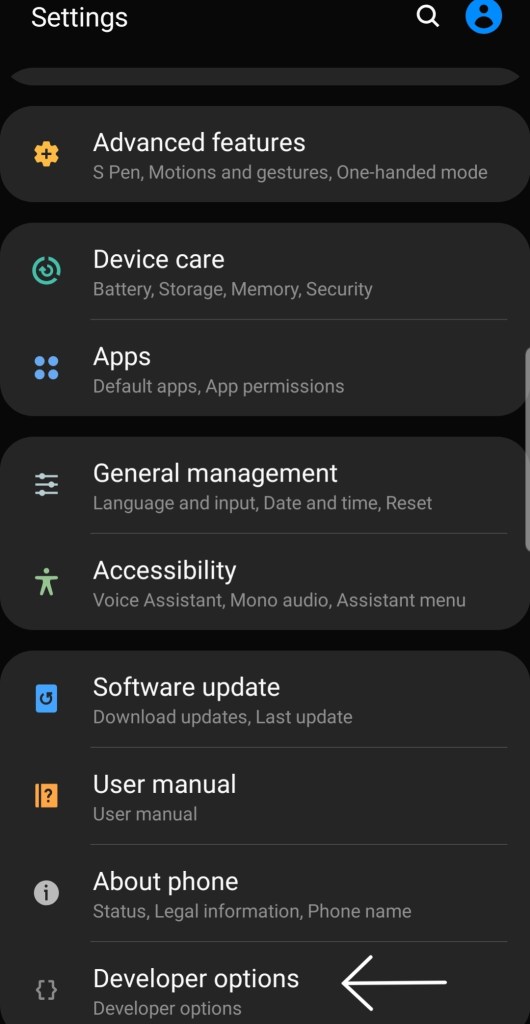
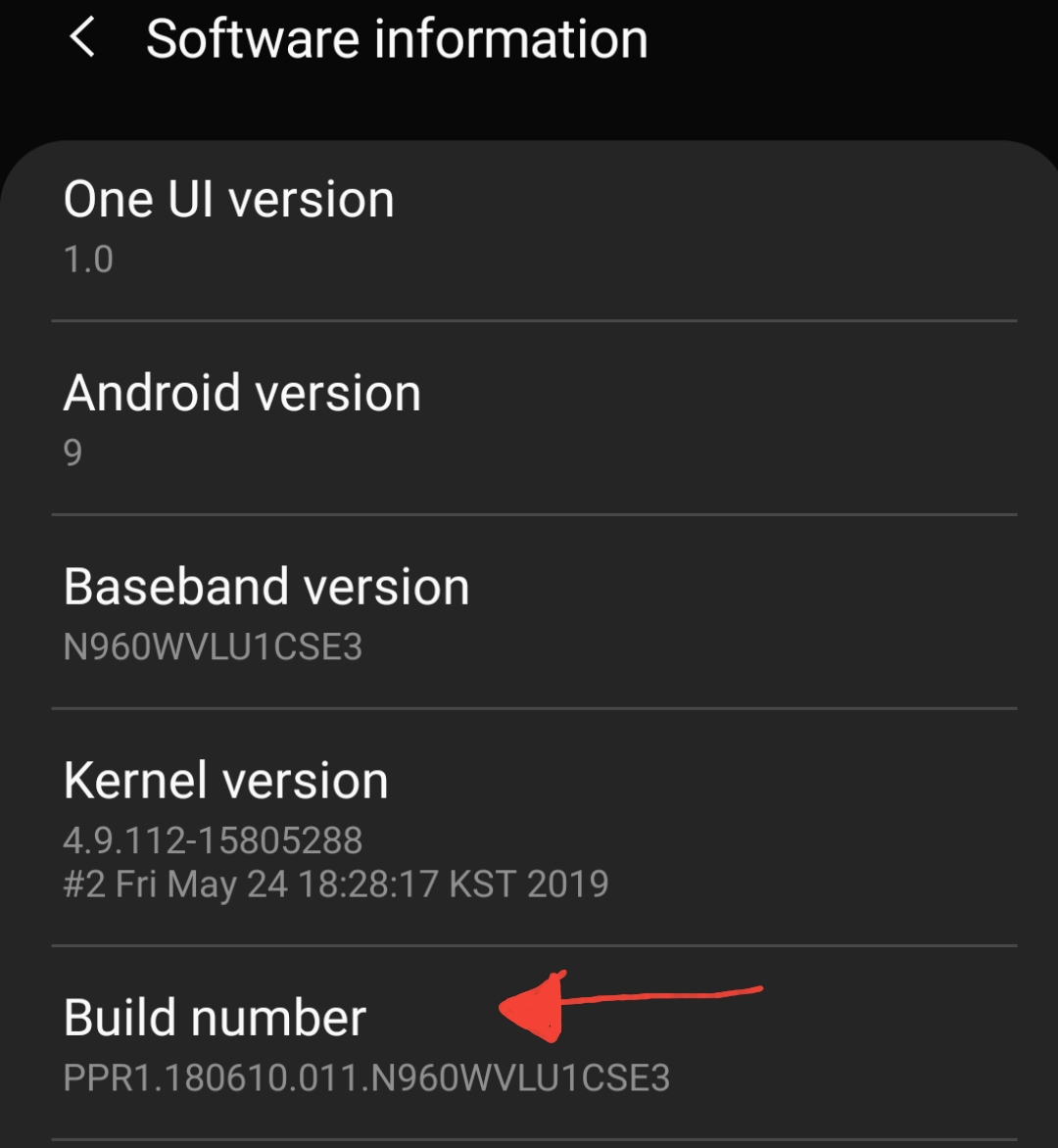
  • Head over to Settings -> Systems -> About Phone. Might be a little different per device, but try and get to an About Page on your device, where the “Build Number” option will appear as a setting. (Try using the search bar as well).
  • Once you’re here, tap the “Build Number” section around 7 times and you should get a pop-up toast message saying Developer Mode is activated.
  • You can then go back up a page, to System, and there should be a new “Developer Options” setting.
  • Tap on Developer Options, and scroll down til you see “USB Debugging”. Turn this feature on. You may need to disconnect and reconnect your device.
  • Now check in Visual Studio or your IDE of choice, and it should appear as an option to run your app.

C# Get and Set Private fields using Reflection

In C#, we can use reflection to dynamically access private fields from an object. It is especially useful for Unit Testing your code, when you need to check private fields and members, or perform some set-up.

Now I don’t recommend doing this in your prod code, since in most cases, there’s a reason a field is set to private, in order to guarantee access security.

So how do we go about using reflection in C#? In my case, I created a helper class that my Unit Tests use to access private fields. Here is a quick snippet of what that class might look like:

using System.Reflection;

public class FieldAccessHelper
{
    public static object GetField<T>(T obj, string field)
    {
        return typeof(T).GetField(field, BindingFlags.NonPublic | BindingFlags.Instance).GetValue(obj);
    }

    public static void SetField<T>(T obj, string field, object value)
    {
        typeof(T).GetField(field, BindingFlags.NonPublic | BindingFlags.Instance).SetValue(obj, value);
    }
}

As seen above, we have two methods, GetField() and SetField().

GetField() takes in the object of type T, along with the string field that you want to access. Just remember to cast the returned object in the calling code.

SetField() takes in the object of type T, along with the string field you want to set, and then the object value itself.

Of course, you can easily add more methods to help access fields, metadata, methods and more through reflection. Highly recommend renaming the file too to be more generic. This should be a good starting point though.

Overall, C# Reflection can be quite useful in helping you set-up Unit Tests, and retrieve values you otherwise wouldn’t have been able to.