

If you’re developing an Android app using a connected Android device, Visual Studio or other IDE’s might not be able to detect it right away, especially if it’s a newly set-up device.
By default, Developer Mode is off for Android Devices. To turn this on, you must perform the following steps on the device:
- Head over to Settings -> Systems -> About Phone. Might be a little different per device, but try and get to an About Page on your device, where the “Build Number” option will appear as a setting. (Try using the search bar as well).
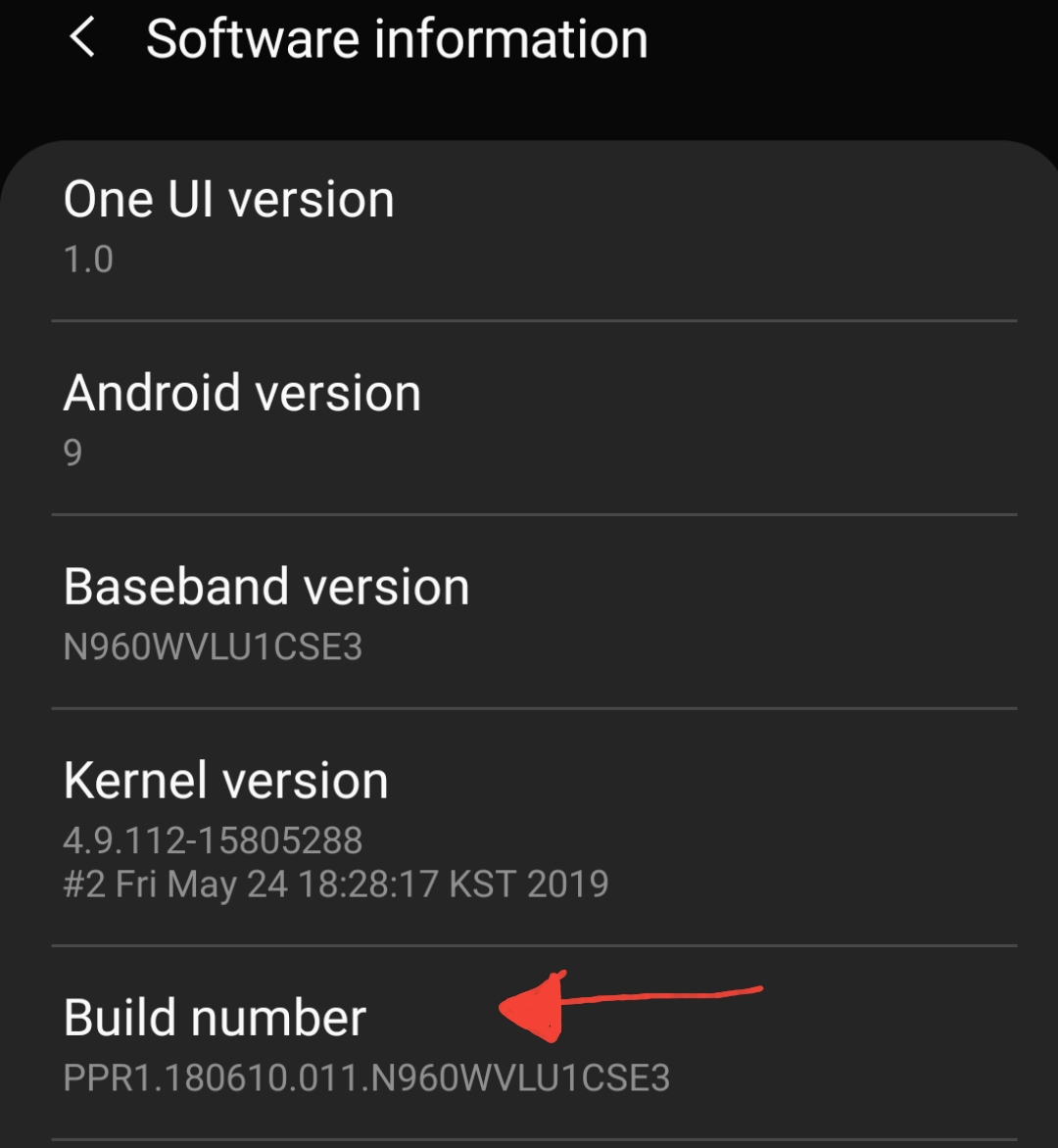
- Once you’re here, tap the “Build Number” section around 7 times and you should get a pop-up toast message saying Developer Mode is activated.
- You can then go back up a page, to System, and there should be a new “Developer Options” setting.
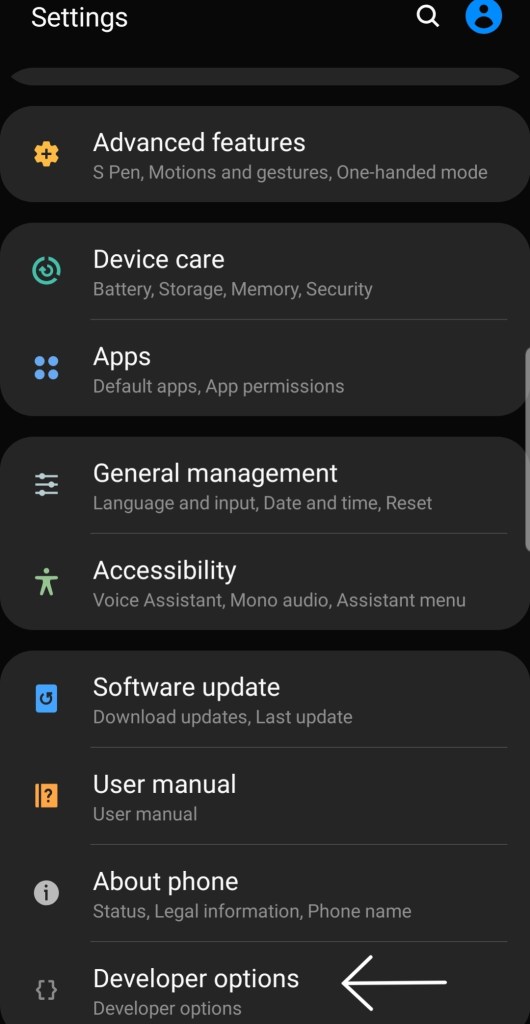
- Tap on Developer Options, and scroll down til you see “USB Debugging”. Turn this feature on. You may need to disconnect and reconnect your device.
- Now check in Visual Studio or your IDE of choice, and it should appear as an option to run your app.
 A Dream of Code